How to Create a QR Code for Your Event Flyer—and Sell Tickets
Your flyer has the headline, the artwork, and the date. But when someone sees it in a café window or on a community noticeboard, how do they buy a ticket?
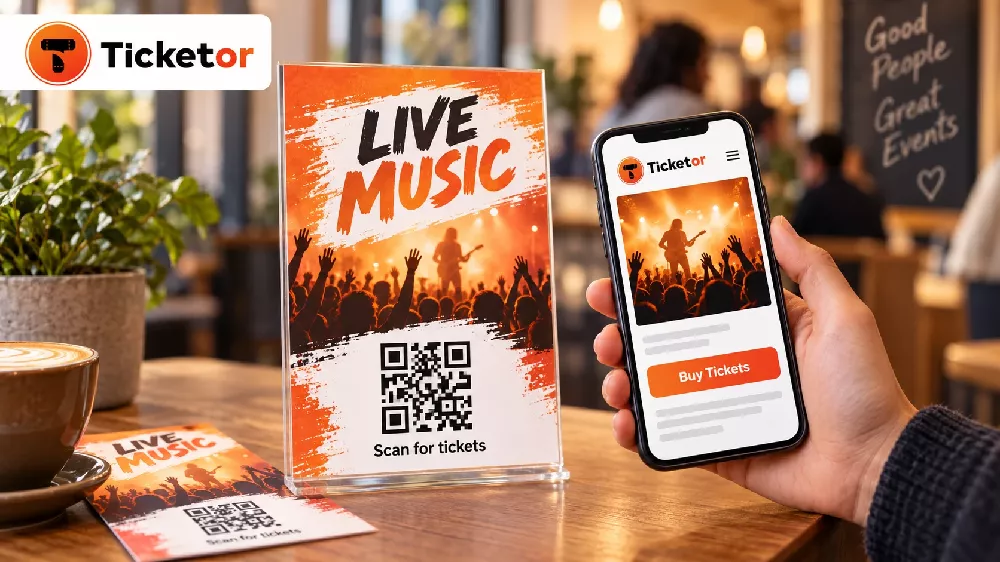
A QR code gives them a direct route. They point their phone camera at the code, open your event page, and choose their tickets. No typing a long web address and no waiting for you to reply to a message.
To create a QR code for your event flyer, you need a URL—the web address you want people to visit. Paste that address into Ticketor’s free event QR code generator, customize the code, download it, and add it to your flyer. The generator is free to use, with no signup required or watermark added.
Already have a ticket-sales page? Use its public purchase link. If you do not, that is the place to start: create your event on Ticketor so the code leads somewhere people can actually buy.
First, give your QR code an event page worth opening
A code that opens a picture of your flyer gives people information. A code that opens a ticketing page lets them act on it.
With Ticketor, you can put your event details, flyer, ticket choices, and online checkout together on a hosted event page. You get a URL for that page, ready to use on printed materials and social media. You do not need to build a separate website first.
For a straightforward event, setup can take just a few minutes when your details and payment connection are ready. A new payment account may need verification, and a custom seating chart can take additional time. Start with the setup your event needs, rather than configuring every available option.
Set up your event and get your link
- Create your account. Sign up for Ticketor to get started with your own ticketing site.
- Add your event. Enter the name, date, time, venue, and a short description. Upload your flyer so the page looks familiar to someone who just scanned the printed version. Include essential information as readable text, not only inside the image.
- Add tickets and connect payments. Set your prices, capacity, and sale dates, and connect your payment processor. General admission keeps things simple. If guests need assigned seats, use a seating chart and let them select their seats online.
- Check the page and go on sale. Open the buyer’s view on your phone, confirm the details and available tickets, and copy the public event purchase link from your event’s promotion tools.
You now have one destination for your flyer’s QR code, Facebook posts, Instagram links, and email invitations. Use the buyer-facing URL, not an administrative editing link or a private checkout session.
Watch the Ticketor Quick Start
This short introduction shows how easy it is to set up your event online and start selling tickets. Watch it before you begin, or follow along while creating your event.
Watch the Ticketor Quick Start on YouTube.
Turn your event URL into a QR code
With the public purchase link ready, open the generator linked above and follow these steps:
- Paste your event URL. Replace the example address in the “Event page or ticket sales URL” field with your own link.
- Choose a design. Adjust the code’s colors, dot and corner styles, size, and margin. Add your logo if you want a branded code. Keep the code easy to distinguish from its background.
- Download the file. Choose PNG, SVG, or JPG. PNG is convenient for many flyer-design tools; SVG stays sharp when resized in software that supports it.
- Add it to your flyer. Place it where it will be visible and give it a clear instruction, such as “Scan for tickets.”
You do not need to create a different promotional code for every flyer. Copies of the same code can send everyone to the same event page. Keep the original download so you can reuse it on posters, table signs, and venue notices.
Check the printed flyer before distributing it
Print one copy at the size you plan to use and scan it with a phone. Does it open the correct event? Are tickets on sale? Can someone read the details and reach checkout comfortably on a small screen?
Give the code clear space around its edges. Avoid placing it over a photograph, stretching it out of square, or making it so small that people have to struggle to scan. A glossy surface, a fold through the code, or poor lighting can make an otherwise good design difficult to use.
Include a short, readable event URL alongside the code as an alternative for people who cannot scan it. Keep the event name, date, and location on the flyer too; guests should not need a phone just to learn what you are advertising.
Share the same ticket link on Facebook and Instagram
Your event URL is useful even when nobody needs to scan anything. Someone already looking at your social post on their phone should have a link they can tap.
On Facebook: share your flyer with a short invitation and the event purchase link. Include the link in relevant event updates and posts where promotion is permitted. Tell people what the link does: “Tickets for our Saturday show are now on sale.”
On Instagram: add your ticket URL to your profile’s links and direct people there from your flyer post. For a Story, use a link sticker where available so viewers can open the event page directly. A caption such as “Choose your seats through the ticket link in our profile” gives them a clear next step.
You can keep the QR code on the artwork, especially if the same design will be printed. Just do not make scanning the only route from a social post to your tickets. A clickable link is usually the simpler option for someone already using their phone.
What happens after someone scans and buys?
The flyer gets their attention. Your Ticketor page handles the next part: visitors review the event, choose tickets or available seats, and complete their purchase. Ticketor then handles the selected ticket-delivery workflow rather than leaving you to email tickets individually.
Buyers can receive e-tickets by email, with text or WhatsApp options when offered for the event. Messaging availability and charges depend on the delivery method. At the entrance, your team can use Ticketor’s free gate-control tools to scan tickets with a compatible phone.
Here is an important distinction: the QR code on your flyer promotes the event; the unique code on each purchased ticket controls admission. Scanning an admission ticket checks its validity and flags a ticket that has already been used. The promotional code itself is not proof of purchase.
For help planning the door, see Ticketor’s beginner guide to ticket scanning.
A few common questions before you print
Can I use the generator before signing up for Ticketor?
Yes. The free generator can encode an existing event or ticket-sales URL without an account. Creating a Ticketor account is the next step when you need the event page, online checkout, and ticketing system behind that link. QR generation and event ticketing are separate services; review your ticketing plan and payment-processing fees when setting up sales.
Can I change the destination after printing the QR code?
The downloaded code contains the URL you entered. Changing that URL in the generator produces a new code; it does not update copies already printed. You can update information on the linked event page without reprinting the code as long as that page keeps the same address and remains accessible.
Can I use one QR code for several events?
Yes, if it points to a page listing those events. For a flyer promoting one specific show, a direct link to that show’s purchase page usually makes the next step clearer. Someone scanning a comedy-night flyer should not have to search through unrelated events to find it.
Put ticket sales behind your next flyer
Creating the QR code is a quick task. The useful part is what happens after the scan: a guest can find the event, buy a ticket, and receive it without waiting for help.
Create your Ticketor account, upload your flyer, and get your event on sale. Then turn the purchase URL into a QR code for print and share the same link on Facebook and Instagram. Your flyer, social posts, and online box office can all lead to the same place.
