From Online Cart to Box Office: Assisted Checkout Without Starting Over
A box-office line does not always move slowly because payment takes too long. Often, the real delay comes earlier: a buyer is still deciding which performance to attend, comparing ticket types, choosing seats, or asking friends where they want to sit. One sales agent has to guide that entire decision while everyone else waits.
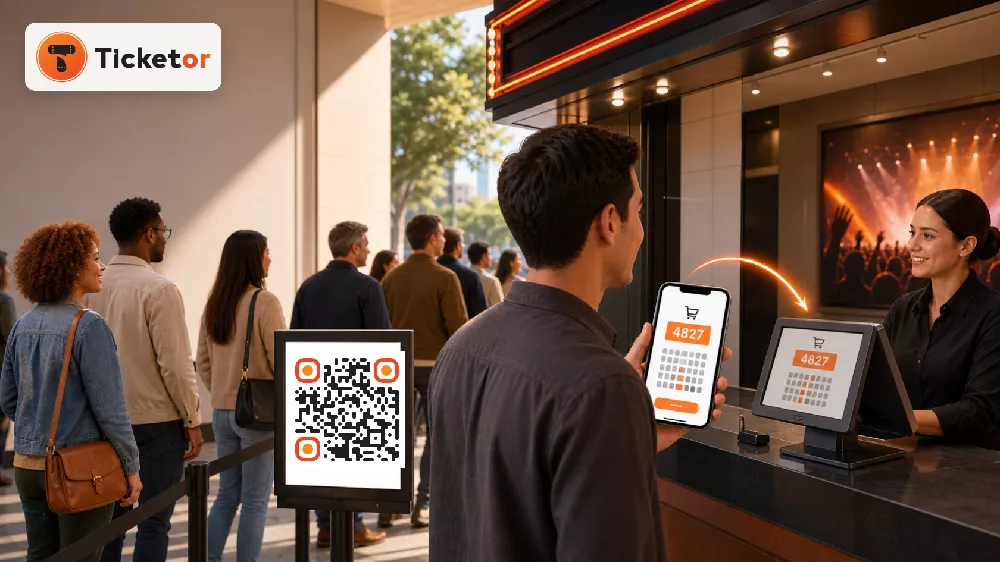
Ticketor's Cart Takeover functionality changes that division of work. Buyers can browse and make their selections on their own phones. If they want help or need to pay at the box office, a sales agent can bring that prepared cart into Ticketor POS and finish the transaction. The buyer keeps control of the choices; the staff member does not have to start the order again.
Ticketor is built around a straightforward goal: simplify life for you, your staff, and your buyers—not just the moment of sale. When buyers can complete routine tasks themselves before and after checkout, your team spends less time re-entering choices, answering avoidable questions, or processing standard changes. Staff remain available for the situations that actually need a person.
That creates a practical middle ground between online self-service and traditional window service. It can shorten the work required at the counter, make cash and check payments possible for people who prefer them, and give buyers a quieter way to choose seats or ticket types before they reach the front of the line.
What Cart Takeover means in practice
An active Ticketor cart displays a short cart code. When the buyer is ready for assistance, the box-office agent opens Take Over Cart in Ticketor's point-of-sale page and enters that code. Ticketor transfers the buyer's complete active cart to the POS, along with the buyer information associated with it when available.
The typical flow looks like this:
- The buyer opens the event's ticket-purchase page on a phone.
- They choose their ticket quantity, ticket type, and seats when the event uses assigned seating.
- Ticketor displays a short code above the active cart.
- The buyer gives that code to the box-office agent.
- The agent takes over the cart, verifies the order, and completes payment through the POS.
The cart is transferred rather than rebuilt. The agent does not need to ask for every selection again, and the buyer does not need to repeat the seat-selection process on a second screen. As with any active cart, ticket reservations remain subject to their normal expiration time until checkout is completed.
Ticketor also gives administrators an Active Carts report under Control Panel > Box Office. It can help authorized staff review reserved but unfinished ticket carts, see available buyer and ticket details, check expiration times, and assist when someone is having trouble completing a purchase.
Why this can move a box-office line faster
A conventional line processes almost everything serially. One customer reaches the window, learns what is available, makes a decision, supplies buyer information, and pays. Only then can the next person begin.
With a mobile-first line, much of that work happens in parallel. Ten people waiting can browse at the same time instead of taking turns using the box-office screen. Some may complete the entire purchase online and leave the sales line altogether. Others arrive at the counter with a ready cart that needs only verification, payment, or a small amount of help.
Cart Takeover can reduce several common sources of delay:
- Staff do not have to reconstruct a buyer's ticket and seat choices from a conversation.
- Buyers can compare options at their own pace without feeling rushed at the window.
- The counter can focus on payment, questions, accessibility needs, and exceptions.
- A buyer who gets stuck online can ask for help without abandoning the cart and beginning again.
- Online and assisted sales continue to use the same Ticketor inventory rather than separate seat lists.
This does not remove the box office. It gives the box office a better role: help where a person is useful, while letting the buyer's phone handle browsing and selection.
Let buyers select for themselves—even when they want to pay cash
Self-service ticket selection should not mean card-only service. A buyer may prefer cash, need to pay by check, lack a suitable payment card, or simply be more comfortable completing payment with a person.
With Cart Takeover, that buyer can still use the online event page to choose the tickets or assigned seats they want. At the counter, an authorized sales agent enters the cart code, receives the prepared order in Ticketor POS, and finishes it using cash, check, card, or another in-person payment method that the organization has configured and permitted for that agent.
This is especially useful for reserved-seat events. The buyer can study the seating chart and make the choice personally instead of trying to describe a location while the agent clicks through the map. It also works well when a family or group wants to discuss quantities and ticket types while waiting.
Ticketor has a second workflow called Receive Payment. Staff can use the cart code to fill the buyer and cart amount, accept an allowed POS payment, and credit it to the buyer's store credit. The buyer then signs in and refreshes checkout to apply that credit. Because store credit requires a signed-in buyer, this option is not available for guest checkout. For the most direct staff-assisted sale, Cart Takeover is the simpler path: transfer the cart and finish it in POS.
Cash and check sales also depend on the sales agent having the appropriate permissions. Organizations using cash registers can keep their normal register and staff-accountability procedures in place.
Turn one posted QR code into many self-service shopping screens
The simplest way to introduce the workflow is to post a QR code near the box office, venue entrance, parking approach, or the point where the line begins. Link it directly to the event's purchase page and add one short instruction:
Scan to choose your tickets. Pay online, or show your cart code at the box office.
Now every buyer with a phone has a private ticket-selection screen. People who pay online can receive their tickets on the phone and proceed toward admission. People who want cash payment or assistance can prepare the cart before they reach the counter.
Ticketor includes tools for creating event and ticket-page QR codes, and its free event QR code generator can create a branded code with custom colors, styles, size, margin, and a logo for signs, posters, and flyers.
For a QR-code sign to work well at a real venue:
- Make the code large enough to scan before a buyer reaches the sign.
- Use high contrast and leave clear space around the code.
- Include a readable short URL for people who cannot or do not want to scan.
- Tell buyers what will happen after the scan; a code without instructions is easy to ignore.
- Test the purchase link on common phones and check cellular or guest Wi-Fi coverage where the line forms.
- Keep a staffed option available. The QR code should add a route, not become a barrier.
The same self-service principle continues after the sale
The box-office line is only one source of routine staff work. After tickets are sold, buyers call or email because they selected the wrong seats, chose the wrong performance, need a different date, want to upgrade, or can no longer attend.
Ticketor lets the organizer define an exchange and return policy for each event. If exchanges are allowed, a buyer can sign in and use Exchange Tickets to select a different seat, performance, or date, or upgrade to qualifying tickets. The buyer makes the new selection directly instead of asking a staff member to interpret the request and rebuild the order.
If returns are allowed, the buyer can return eligible tickets within the deadline and rules established by the organizer. The policy can include a return charge or other permitted deductions, so self-service does not mean giving up control of the financial terms. Returned tickets are voided and can become available for sale again.
The organizer remains in charge. A strict policy can prohibit buyer-initiated returns, a flexible policy can allow them until a chosen cutoff, and authorized administrators or sales staff can still assist buyers or make exceptions when appropriate. Ticketor handles the routine requests automatically while preserving a human path for unusual cases.
The result is the same kind of simplification that Cart Takeover brings to the line: buyers handle ordinary choices themselves, and staff spend their time on the work that benefits from judgment or personal help. See Ticketor's self-service ticket return and exchange guide for policy settings, exchange rules, returns, store credit, and staff-assisted options.
A useful workflow for more than theaters
Cart Takeover is valuable anywhere walk-up buyers need choices before payment:
- Theaters and performing-arts venues: Buyers can select a performance, price level, and assigned seats before reaching the window.
- Schools and community organizations: Families can prepare orders on their phones while the box office continues accepting cash and helping less technical guests.
- Festivals, fairs, and attractions: A QR sign can redirect card-paying visitors to online checkout while staff handle cash, questions, and exceptions.
- Sports organizations: Fans can browse sections and available seats before the counter completes the sale.
- Galas and fundraisers: Guests can review ticket choices on their own device and still receive personal assistance when needed.
- Museums and timed-admission events: Visitors can choose an available time slot while waiting instead of beginning that decision at the register.
The workflow also helps with phone support. If a buyer has built a cart but cannot finish checkout, authorized staff can use the cart code to continue the prepared order rather than asking the buyer to recreate it from scratch.
A practical event-day setup
Before opening the doors, give the workflow a short operational test:
- Open the exact public purchase link buyers will use and build a sample cart.
- Confirm that the cart code is visible and that staff can locate Take Over Cart in POS.
- Finish or reset the current POS cart before taking over another one.
- Verify the allowed payment methods and sales-agent permissions, especially for cash and check.
- Place the QR sign where people can scan it without stepping out of line or blocking an entrance.
- Train staff on the difference between Take Over Cart and Receive Payment.
- Keep a short URL and direct staff assistance available as alternatives to scanning.
For a broader look at the counter workflow, payment permissions, delivery options, and active-cart reporting, see Ticketor's POS and box-office guide.
One cart, fewer routine tasks
Some buyers want to do everything themselves. Others want a person to complete the transaction. Many fall somewhere in between: they are comfortable choosing tickets on a phone but want to pay cash, ask a question, or get help with the last step.
Ticketor lets all three groups begin with the same online selection process. A buyer can check out online, hand the prepared cart to the box office, or use a staff-assisted payment workflow when appropriate. The result is not just another checkout option. It is a way to distribute the work across the line without forcing anyone to start over.
After the sale, the same approach can continue. When the organizer's policy permits, buyers can make routine exchanges or returns without creating another box-office task. Ticketor does not remove staff from the experience; it keeps staff from becoming the required middleman for every ordinary decision.
Ready to simplify ticketing for your buyers and staff? Create your Ticketor account and try the connected online and box-office workflow.
