AI Event Management Software: From First Idea to Ticket Sales—and Beyond
A concert can be ready in your head long before it is ready to sell. You know the venue, the audience and the experience you want to create. Getting it online still means working through dates, ticket prices, descriptions, seating, artwork, website content and the email that announces it all.
Ticketor brings AI into those everyday jobs. Describe your event and build its first version through a conversation. Turn a room description or an uploaded venue plan into an editable seating chart. Write the announcement, develop a newsletter template, improve your website content and prepare a chargeback response using the records already in your ticketing system.
The big benefit is the connection between the work. Your event information, ticketing tools, design settings and business records give AI useful context. The results go into the places where your team can edit them and put them to work.
Create your event with AI, starting with what you know
You do not need a perfect brief to begin. Start with a short idea, or provide the venue, date, duration, ticket types and prices together. Ticketor's AI event creator helps gather the remaining details while the event preview takes shape.
For example, an organizer could start with:
“Create a jazz night at Harbor Hall on November 14 at 8 PM. It lasts two hours. We have 120 seats, with standard admission at $75 and VIP at $95. The atmosphere should feel warm and intimate.”
That gives the conversation a useful starting point. You can work through the event title, venue, schedule, duration and ticket options, then refine individual details. If your event needs reserved seats, you can continue into seating-chart creation and ticket-price assignment. For a general admission show, you can work with ticket quantities and price options without a seating chart.
The ability to type or speak is especially helpful when you already know what you want but would rather explain it naturally. A short initial message works too: “I want to put on a comedy night” can become the beginning of the setup conversation.
Once the details are ready, create the event and continue in the regular event editor. Finish your account and payment setup, then share the purchase page and open ticket sales. You can return to the editor as your plans develop.
Build an editable seating chart from a prompt or a PDF
Reserved seating adds another layer of work: table counts, rows, sections, seat numbers, aisles and the position of the stage. Ticketor's AI seating chart designer gives you two useful starting points.
Describe the layout you need
For a banquet, gala or dinner show, you can describe the room in straightforward terms:
“10 round tables of 12 seats in 2 rows of 5 tables, with the stage at the bottom.”
The important details are all there: ten tables, twelve seats at each table, two rows and a stage position. The result is a 120-seat layout that you can open in the visual seating chart designer to verify and fine-tune.
A theater prompt can describe rows, sections and an aisle instead. Be specific about whether row A is nearest the stage, how the seats are numbered and which parts of the room should be separated. That gives AI a better basis for building the venue you have in mind.
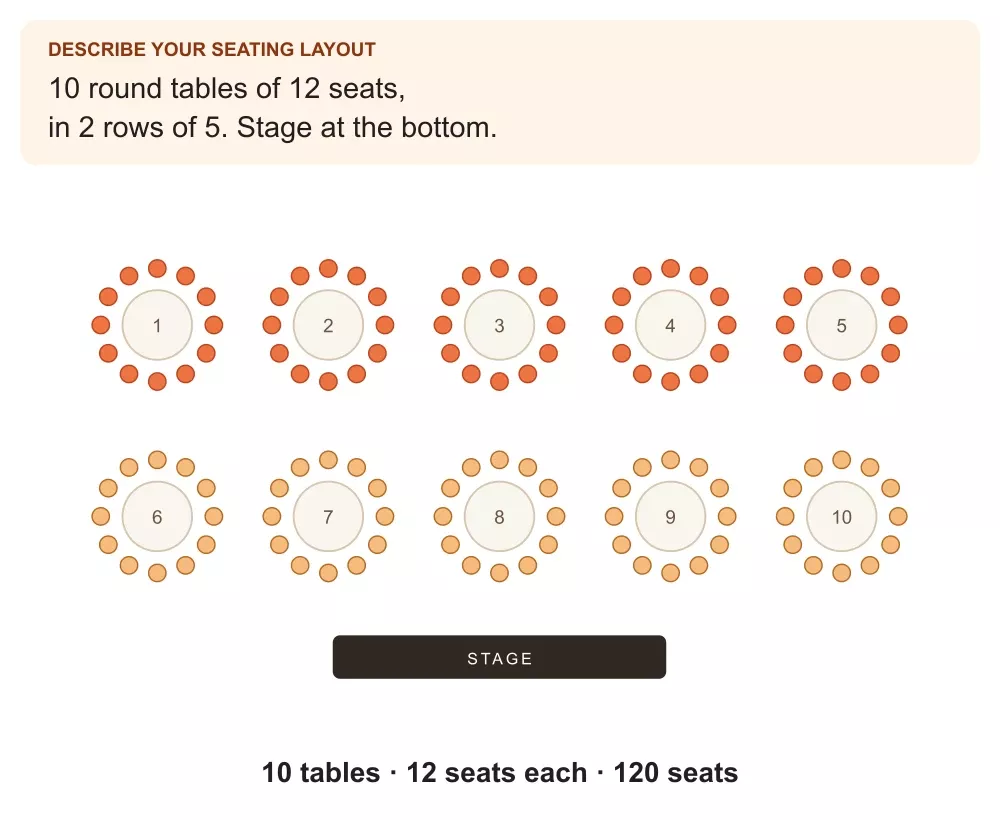
Illustrative example: ten tables, twelve seats each, two rows and a stage at the bottom.
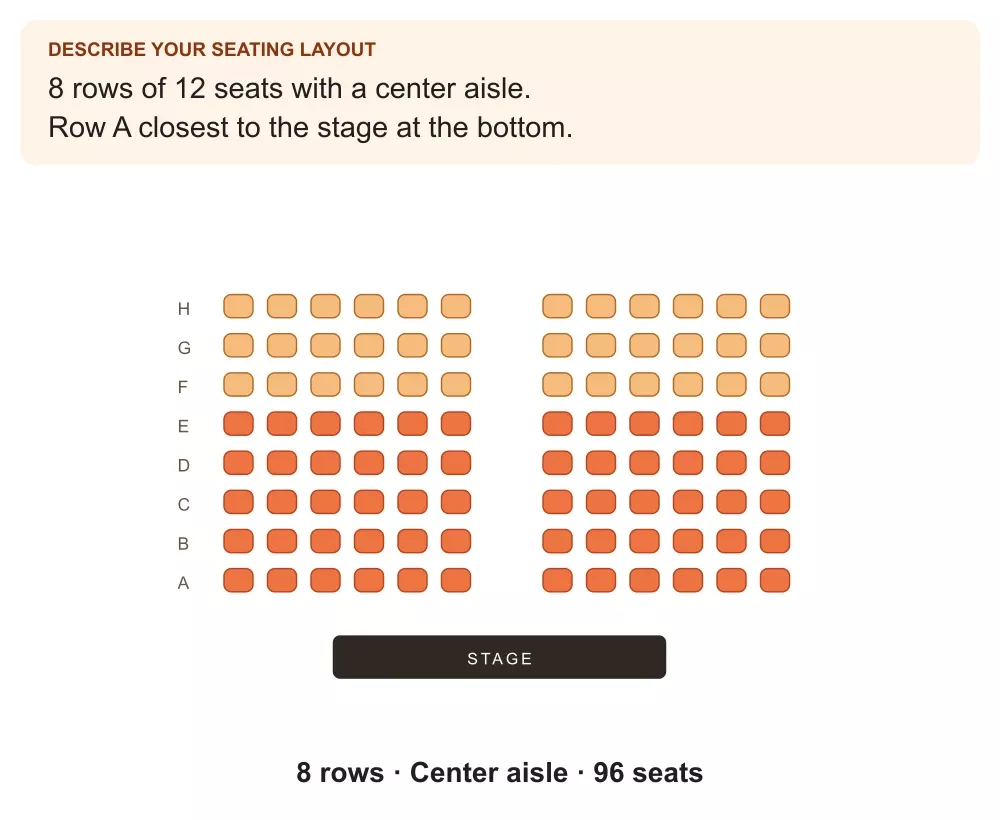
Theater example: eight rows of twelve seats with a center aisle and row A closest to the stage.
Start with the venue's existing chart
If the venue already has a seating-chart PDF or a clear image, upload it for AI analysis. Ticketor uses readable sections, row labels and seat numbers to build an editable chart. Clear source material matters, and an unclear detail may need an additional answer from you.
You then have the familiar Ticketor seating chart designer available for checking orientation, spacing, seat labels and the finished layout. From there, assign ticket prices to the relevant seats, rows, tables or sections. Buyers can choose seats through your interactive seating chart.
That is a useful change in the work: start with a generated layout, then spend your attention on the venue-specific details that make it ready for ticket sales.
Write event descriptions that sound like your event
A title, time and address tell people where to go. A good description helps them picture the experience and understand why they would want to be there.
Ticketor's AI writing tools use the event information together with your current description and your instructions. You can start a description, polish an existing draft or improve its presentation. Give the tool details that distinguish the event: the performers, format, audience, atmosphere, included benefits or information guests need before buying.
For the jazz-night example, the direction might be:
“Write a welcoming description for an intimate evening with a live jazz quartet. Explain that VIP tickets are for the tables closest to the stage. Keep the tone relaxed, and make the ticket choices easy to understand.”
Use only benefits that your event actually offers. The better your brief, the more useful the first draft becomes. You can edit the result in the rich-text editor, ask for another version or restore your original text with Undo AI changes.
The same approach extends to descriptions for seasons, packages, bookings, merchandise, gift cards and other supported items. An event team can keep the tone consistent across its ticketing site while tailoring each description to what the buyer is choosing.
Give the event a visual identity with AI artwork
Artwork is often the next task after the event description. With Ticketor's AI image tools, you can describe the picture you want and use the item's information and your site's brand colors as context.
A jazz flyer could use a warm vintage style. A family festival might call for a bright outdoor scene. A theater production may need a more dramatic composition. Clear creative direction gives the generator something useful to work with, beyond the event name alone.
Review the generated image and choose the one that fits. If you already have finished artwork from a designer, upload it and use it as supplied. Supported image workflows also cover items such as seasons, packages, bookings, merchandise and gift cards, helping you fill out the rest of your catalog.
Create branded newsletter templates for your next campaign
Once the event is ready, the announcement needs to follow. The newsletter template editor's AI writing and design tools help turn your message into an email-friendly layout using your theme colors as brand guidance.
You can ask for a first announcement, a reminder or a clearer presentation of an existing message. Explain who the email is for, what you want them to do and which information needs emphasis.
For example:
“Design a newsletter announcing our jazz night. Use our brand colors, give the performance details a clear hierarchy and include a prominent ticket button using the event link already in the template. Keep the layout easy to read on a phone.”
Email templates use formatting intended for inboxes, while your website content follows the site's theme. Existing merge tags and configured email elements remain part of the workflow, so you can continue to use the personalization and mailing tools your team already knows.
Save and preview the template, check the content and links, and use Ticketor's newsletter and mailing-list tools to prepare your campaign. AI helps with the content and layout; you decide the audience and when to send.
Improve your website content with AI design assistance
Your event page is one part of the visitor's experience. Your homepage, venue information, sponsorship page, organization story, headers and footers also need clear writing and a useful layout.
In supported HTML editors, you can ask AI to write, polish or improve the design of your content. Ticketor supplies your theme colors as brand context and directs website content to use the site's standard buttons and highlights. The generated content is intended to fit into your existing website.
A practical request might be:
“Turn this venue information into a welcoming page with a short introduction, clear sections for parking and accessibility, and a ticket button. Use our website's existing button and highlight styles, and make the content work well on mobile.”
Bring the facts you want included. Then adjust the result in the familiar editor until the writing and layout fit your organization. This is especially useful for teams that manage their own ticketing website and want to keep its content current between events.
The AI tools work alongside Ticketor's website builder and content management system, giving you another way to develop the pages your buyers use.
Prepare chargeback responses using the records you already have
Some of the most time-consuming writing happens after a sale. When a dispute arrives, you need to connect the allegation with the purchase, explain what happened and organize the evidence that supports your response.
Ticketor's AI-assisted chargeback response workflow starts with two inputs: the dispute notice received by the merchant and the merchant's explanation. AI selects a matching system response template, and Ticketor fills it with the available buyer, invoice and other supported records. AI then customizes the narrative around the supplied information.
This keeps the response grounded in the transaction. Depending on the selected template and available records, relevant information can include the purchased items, payment details, ticket records, recorded admission scans and applicable policies. Missing case details are identified so you can complete them.
The generated response appears in the rich-text editor, where you can make changes and use Undo AI changes to return to your original content. When the necessary case information has been provided, the workflow can produce a response ready for your review and submission.
Review the statements, attach the supporting evidence required by your payment processor and submit through its dispute process. AI prepares the response; it does not determine the dispute outcome. A recorded scan, for example, should be described accurately rather than treated as proof of facts it cannot establish.
For the wider context, read Ticketor's guide to chargebacks and fraud in event ticketing.
Keep the work connected, from event setup to event day
Each of these tools helps with a different part of an organizer's workload. Together, they create a practical path from the initial brief to the content, layout and records your team needs.
- Create: Work through event details, ticket options and seating in a guided conversation.
- Present: Develop descriptions, artwork and branded website content.
- Promote: Build newsletter templates and prepare campaigns in your existing mailing workflow.
- Manage: Continue with Ticketor's online and box-office sales, payment options, reporting and ticket check-in.
- Respond: Use the available transaction records and your explanation to prepare a factual chargeback response.
You can start with one task and expand as your event develops. A small general admission show might begin with event setup, a description and a flyer. A seated fundraiser might also use the AI seating chart designer, a redesigned event page and a newsletter campaign.
The opportunity is straightforward: spend less of your working day turning known information into forms, layouts and first drafts, and more of it shaping the experience you want people to attend.
Have an event in mind? Get started with Ticketor and create your event.
